

AV Systems in Meeting Rooms
See Teaching & Meeting Rooms for a list of meeting rooms, capacities and locations. See Room Booking for details of how to book meeting rooms.
Overview
The AV across the meeting rooms is designed to be familiar and as consistent as practical across the spaces for ease of use without significant demonstration or instruction. There is a Microsoft Teams Room (MTR) touchscreen and laptop connections on the meeting table.
Scheduling a call
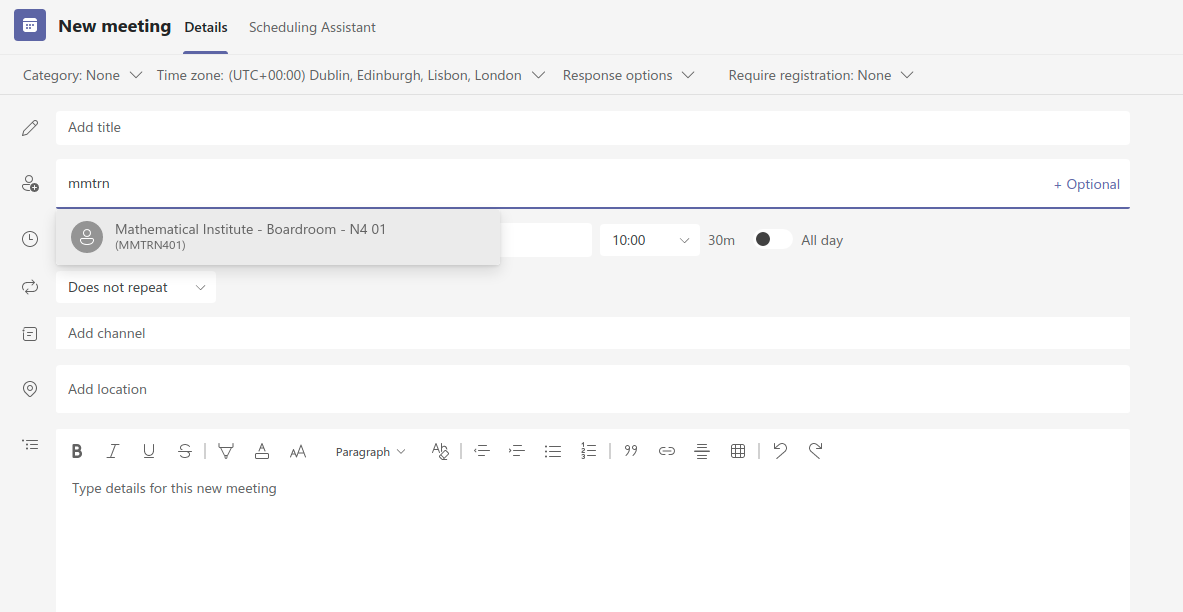
When you schedule a Teams meeting in advance, invite the email address listed below to the meeting.
| Room | Teams Room Email Address | Teams Room Name |
|---|---|---|
| S0.22 | mmtrs022 | |
| S0.29 | mmtrs029 | |
| S1.37 | mmtrs137 | |
| S2.37 - Fox Tayler Room | mmtrs237 | |
| N3.12 - Quillen Room | mmtrn312 | |
| N4.01 - Board Room | mmtrn401 |
Note: Only Nexus users with Maths affiliation can invite the Teams rooms. If you don't have Maths affiliation, you will receive the response "Your meeting request was declined. You don't have permission to book this resource." You can still join the call manually (see below).
Starting/joining a call
If you have scheduled a meeting and invited the room, you will be able to start your meeting by selecting it on the touchscreen on the room meeting table.
If you have scheduled a meeting but not added the room in advance, you can enter the joining code on the touchscreen. Alternatively, use another device (mobile phone, tablet or laptop) to add the room to the meeting - either select "add a nearby meeting room" or invite the room with the Teams Room Name/Email listed above.
If you have not scheduled the meeting in advance, you can start a new meeting straight from the touchscreen and invite your participants from there.
Connecting a laptop
You can connect a laptop to the AV system using the cables in the centre of the table.
If you have joined a Microsoft Teams meeting from the touch screen, connecting a laptop to the USB-C or HDMI cable will share your screen into the meeting and display it on the TV screen. If prompted, tap "Present" on the touchscreen.
Alternatively, you can join the meeting on your laptop:
- Connect either the USB-C cable, or both the HDMI and USB-A cables
- If prompted, tap "Host" on the touch screen
- Launch Microsoft Teams (or Zoom, etc.) on your laptop and join the meeting as normal
- Select the appropriate devices for the video and audio inputs - for example:
- "AW-UE4" for the camera
- "Echo Cancelling Speakerphone" for microphone and audio output
Other controls
The touchscreen has various controls, similar to what you would find in Teams on a regular PC, including:
- Invite other participants
- Toggle camera, microphone and screen sharing
- Raise hand
- React (emoji)
- Enable/disable captions or transcription
- Enable/disable chat display on the TV screen
Ending a call
When you are done, simply press the red "Hang up" button in the bottom-right corner.
Joining Zoom or Google Meet meetings
You can also join Zoom or Google Meet meetings directly from the touchscreen:
- Tap "Join with an ID"
- Tap the meeting provider (Zoom or Google Meet)
- Enter the meeting ID and (for Zoom only) passcode
- Tap "Join meeting"
Please note, as these are third-party providers:
- Functionality is more limited than in Teams meetings (e.g. no screen sharing)
- You cannot start a meeting from the touchscreen, only join one set up externally
- You cannot invite the room via email
- They are not covered by university data protection agreements, so we do not recommend using them for sensitive discussions
- We cannot guarantee ongoing support for them, and can only provide minimal technical support
If you need additional functionality, you can join via a laptop and connect that as described above.
Support
If you need further help with the system:
Any known issues will be listed on the IT Status page.