

Accessing RFS storage
The Research File Service (RFS) provides a reliable, resilient, secure, and scalable University-approved central storage facility for active research data. RFS users are provided with the assurance that their research data is safely protected and accessible. To request new RFS project storage, use IT Self Service (OSM), search for "RFS", and select the Research File Service (RFS) service request. Further information is available in the central University RFS guidance.
Once you have been granted access to an RFS project, you can access the storage using your University SSO credentials. There are two ways to access files in an RFS project:
- Mount the RFS storage on Linux, Windows or macOS as an SMB share.
- Access and manage files through the RFS File Management Portal in a web browser.
If you are working remotely or using eduroam, you must first connect to the Oxford University VPN. You should use the University VPN rather than a local departmental VPN. See the Oxford VPN guidance for instructions.
Below is further detailed guidance for accessing RFS as an SMB share on Maths systems.
Linux
- If you are working remotely or using eduroam, first connect to the Oxford University VPN.
- Open a file browser. For example, by going to "Menu -> Home Folder" (or clicking on the desktop and hitting ALT+Home)
- Select "Go -> Location..." in the menu or hit CTRL+L
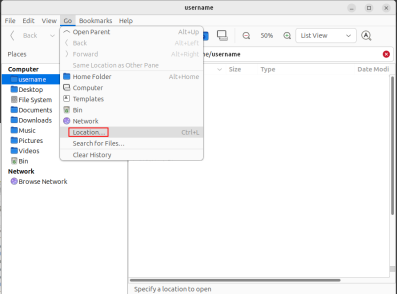
- Enter smb://connect.ox.ac.uk/RFS in the address bar
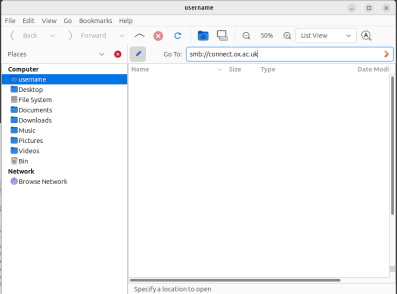
When prompted, enter your University SSO credentials:
- Username: <SSO> (for example, abcd1234)
- Domain: AD-OAK
- Password: your University SSO password
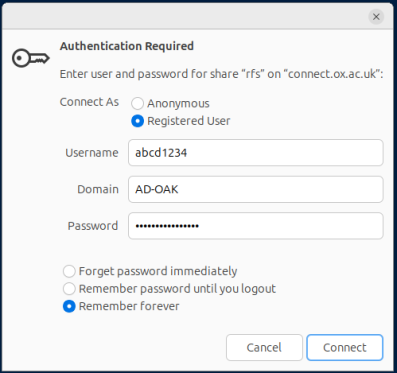
- You can then choose to remember the password "forever" which will allow you to store the credentials in the GNOME keyring and thus not need to re-enter the password each time you connect to RFS. It would also allow you to use the command line method below to automatically mount the share on login without having to enter a password (eg by adding it to ~/.bashrc, ~/.bash_login or ~/.profile).
- You can now create a symlink in your home directory to get to RFS quickly by running
ln -s "/run/user/$UID/gvfs/smb-share:server=connect.ox.ac.uk,share=rfs" ~/rfs
in a terminal, which will create a link called "rfs" inside your home directory.
Linux command line
- If you are working remotely or using eduroam, first connect to the Oxford University VPN.
- To mount the RFS storage on a compute machine or desktop (note that it is not possible to do this on gate.maths.ox.ac.uk), run:
gio mount smb://connect.ox.ac.uk/RFS
If you have saved the credentials before as specified above you will not need to re-enter your credentials. Otherwise you will be prompted for credentials which should be as follows
- User: <SSO> (for example, abcd1234)
- Domain: AD-OAK
- Password: your University SSO password
- You can now create a symlink in your home directory to get to RFS quickly by running
ln -s "/run/user/$UID/gvfs/smb-share:server=connect.ox.ac.uk,share=rfs" ~/rfs
in a terminal, which will create a link called "rfs" inside your home directory.
Windows
- If you are working remotely or using eduroam, first connect to the Oxford University VPN.
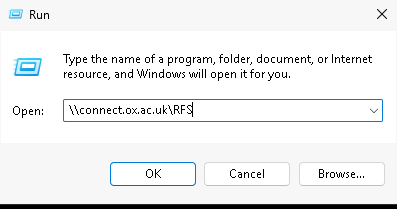
- Open any File Explorer window or press WinKey+R.
- In the address bar in File Explorer or in the Open field in Run enter:
\\connect.ox.ac.uk\RFS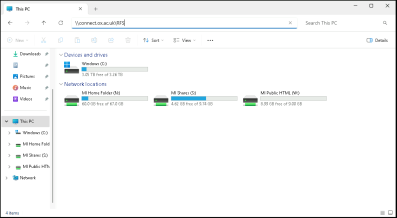
OR
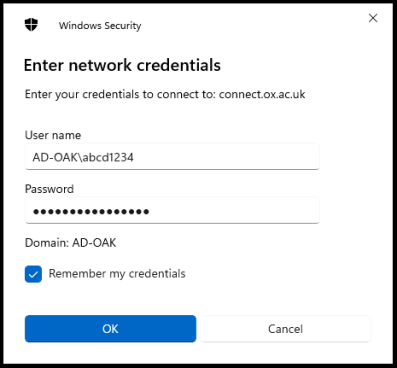
When prompted, enter your University SSO credentials:
- Username: AD-OAK\<SSO> (for example, AD-OAK\abcd1234)
- Password: your University SSO password
- You have the choice to select "Remember my credentials" so that you won't get prompted every time you login.
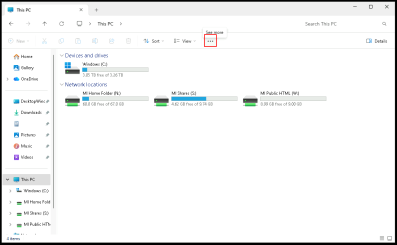
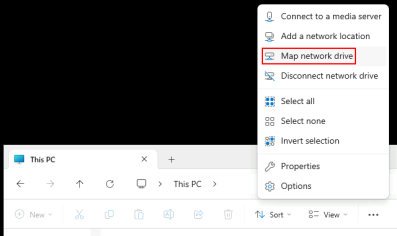
- Alternatively, you can map the RFS to a network drive for easy access. Open File Explorer and select "This PC" in the left-hand panel. Click the three dots to see more and select "Map network drive".
- In the "Folder" box enter:
\\connect.ox.ac.uk\RFS
If possible, map RFS to the R: drive. Tick "Connect using different credentials" and select "Finish".
- Then enter your University SSO credentials as described above.
- You should now have access to the RFS storage.
macOS
- If you are working remotely or using eduroam, first connect to the Oxford University VPN.
- Open a Finder Window
- Select "Go -> Connect to Server..." or press ⌘K.
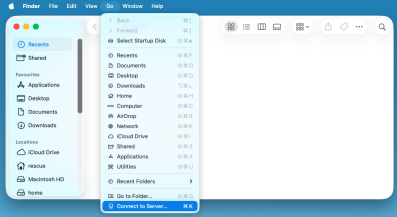
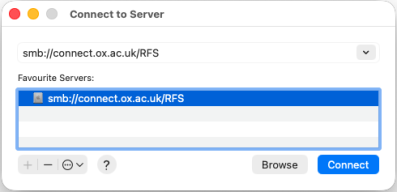
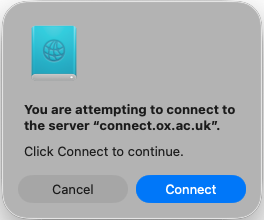
- Enter smb://connect.ox.ac.uk/RFS as the Server Address and select "Connect". You may wish to add this address to your favourite servers for easier access in future. You may got a pop up appear after this. Just click "Connect" to proceed.
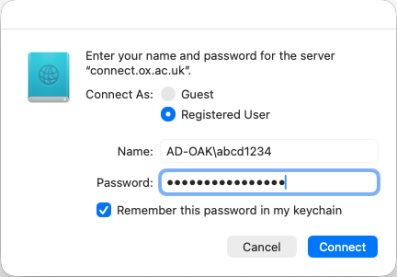
When prompted, select "Registered User" and enter your University SSO credentials:
- Name: AD-OAK\<SSO> (for example, AD-OAK\abcd1234)
- Password: your University SSO password
- You have the option to select "Remember this password in my keychain" if you don't want to be prompted for credentials next time you connect to RFS.
- You should now have access to the RFS storage.